Android AI widget tutorial for live bus arrivals
Key takeaways
- The Verge tested Create My Widget on a Pixel 11 Pro and got a Gemini shortcut that returned schedule-based guidance for its bus stop.
- A transit prompt should specify the exact stop, route, direction, and what the tile should display when live predictions are unavailable.
- Compare the tile against your transit agency’s live estimates and check how it behaves when those estimates change or disappear.
- Keep your agency’s arrivals view handy if the generated tile requires a tap or shows times you cannot verify.
This Android AI widget tutorial walks you through asking Google’s Create My Widget for live bus arrivals, then checking whether the home screen tile actually shows them. In The Verge’s test, the resulting tile opened Gemini and returned schedule-based guidance. For a commute, the test is whether you can see a current prediction for the right stop and direction as soon as you glance at your phone.
Google announced Create My Widget at I/O in spring 2026 as part of Android’s Gemini Intelligence features. According to The Verge, the beta began rolling out to Pixel phones in November 2026, and the outlet tried it on a Pixel 11 Pro. Check whether the option appears on your phone before planning your home screen around it. The Verge’s hands-on test of Create My Widget · Google Pixel Help
A home screen tile can look finished even when its only visible content is a label. If you’re deciding whether to leave home now, the information you need is the next departure estimate, which bus it applies to, and whether the estimate is still current.
What Create My Widget did in The Verge’s test
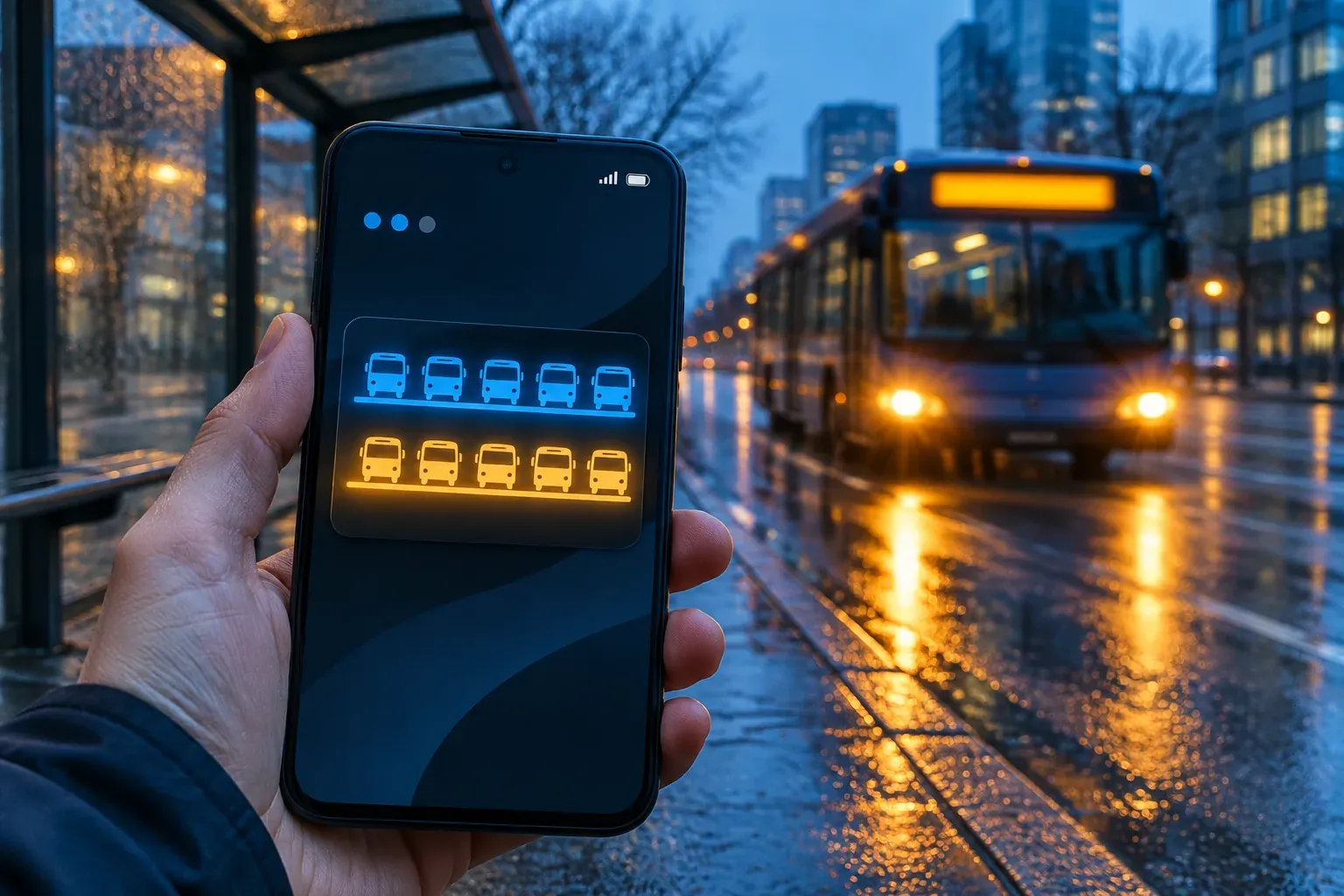
The Verge reported that its bus prompt produced a tile labeled Bus Arrivals. Tapping it asked Gemini to search for the specified stop. The response discussed how often the bus ran and when it might arrive based on the schedule, leaving the reporter without a glanceable list of live predictions.
The outlet got more immediate results with simpler requests. One widget displayed a rotating Jurassic Park quote and opened a Reddit thread when tapped. A weather widget displayed different text depending on whether it was raining. A walk-logging tile, meanwhile, prompted Gemini to add a walk to a calendar when tapped. These examples show why it’s worth trying the tap action and looking at what the tile itself displays before deciding where it fits on your home screen. Google Gemini Apps Help
Android AI widget tutorial for your bus stop
Open your transit agency’s arrivals view and find the stop you actually board at. Write down the stop name or ID, the route, and the direction or destination shown there. If the same route serves stops on opposite sides of the street, use the identifier for your boarding side when the agency provides one. Keep that page or app view handy for comparison.
If Create My Widget is available on your Pixel, open it and enter a prompt like the one below. Replace the bracketed details with your own. The prompt defines the result you want to inspect. The Verge’s test gives you a reason to check whether the beta can deliver it. InnoVirtuoso’s guide to structuring prompts with POML
Create a home screen widget for [transit agency], stop [stop name and ID], route [route], toward [destination]. Show the next two live arrival estimates on the tile itself. Display the stop and direction, and show the update time when the source provides it. If live predictions are unavailable, display “Live arrivals unavailable.” If you show timetable times, label them “Scheduled.”
Once you have a tile, read it before tapping. Can you see the arrival times and tell that they’re for your direction? If it only says Bus Arrivals, tap it once to see where it takes you. A tile that opens a Gemini response may still be convenient for a lookup, but it adds a step every time you check the bus.
If the screen is crowded, try asking for one route and just the next arrival. That gives you a simpler result to inspect. If the revised tile still opens a conversation, treat it as a shortcut and move on to checking whether your agency offers a quicker way to reach the arrivals view.
How to check if bus arrivals are really live
Start by checking how your agency labels the times it displays. A scheduled time comes from the timetable. A live prediction is an estimate for a particular arrival, and it can change as the agency updates it. A tile showing minutes until departure could be counting down to either one. Wikipedia’s overview of real-time passenger information systems
| What the tile shows | What to check |
|---|---|
| Minutes or a clock time labeled live | Match the stop, route, and direction with your agency’s estimate and check for an update time. |
| A time labeled scheduled | Compare it with the timetable and use it for planning. |
| A time with no label or update information | Treat the time as unverified until you can establish where it came from and how it refreshes. |
| A label that opens Gemini | Judge it by how quickly it gets you to the information you need. |
Open the agency view and check the tile as close together as you can. Confirm that both refer to the same upcoming trip where the displays give you enough information to tell. If the widget gives you minutes remaining and the agency gives you a clock time, use the current time to compare the two. Note what both screens show so you can tell which one changes on the next check.
Check again when the agency changes an estimate or the first arrival drops off its list. A match on the first check can happen while the bus is running to schedule. A change gives you a better test of whether the tile follows the agency’s updates. If you catch the agency showing that live predictions are unavailable, see whether the tile also reports the gap or continues to display an old estimate.
What to do if the tile opens Gemini or shows stale times
Use the agency’s arrivals view as your primary check while you test the widget. If your transit app or browser lets you pin the exact stop or add a shortcut to it, try opening that from the home screen. Check where it lands. A shortcut is more useful for a commute when it opens your boarding stop without asking you to search for it again. Google Android Help
If you still want a generated transit tile, consider a task you can verify at a glance, such as counting down to the time you usually leave home. The Verge reported that Create My Widget could show countdowns for events, including ones on a calendar. Ask for a label such as Leave for the bus so the timer’s purpose is clear when you’re rushing out the door.
A fixed-stop prompt can start with the public stop identifier and route direction. That gives you enough detail to test the display without including your home address or daily travel plans. If you choose to use a transit app’s nearby-stop feature, check that you’re comfortable with its location permissions. InnoVirtuoso’s smartphone security guide
The Bottom Line
Use this Android AI widget tutorial to test one stop and one route before relying on a tile for your commute. Compare it with your transit agency’s arrivals view, then repeat the comparison after the agency’s prediction changes. If the tile needs a tap to reveal times or leaves you guessing whether a time is live, put the agency’s closest available shortcut on your home screen and use that for your next trip.
Frequently Asked Questions
Can Google’s Create My Widget show live bus arrivals?
The Verge’s bus test produced a tile that opened Gemini and returned schedule-based guidance. If you try a transit prompt, check whether the tile itself displays predictions and follows changes in your agency’s live arrivals view.
How do I make an AI widget on my Pixel?
If Create My Widget is available on your Pixel, open it and describe what you want to see on your home screen. For bus arrivals, specify the agency, stop, route, direction, and what to display when a live estimate is unavailable.
How can I tell if a bus arrival time is live or scheduled?
Start with your transit agency’s arrivals view and look at how it labels the time. Compare the widget against the agency’s live estimate for the same stop and direction, then check whether the widget follows an update.
Why does my Android bus widget open Gemini when I tap it?
Some widgets The Verge tested behaved like shortcuts that send a request to Gemini. The bus arrivals tile used the tap to start a lookup, so the result appeared in Gemini after the tap.
What can I use if my AI transit widget only shows the schedule?
Check your transit agency’s live arrivals view before leaving. If your transit app or browser supports a home screen shortcut, see whether it can open directly to your boarding stop.
Sources
Read more on InnoVirtuoso
- BADBOX Android malware: How TV Box Ad Fraud Works
- Build a Home Lab: Your Safe Hacking, Coding, and Networking Playground at Home
- Information Theory, From Coding to Learning: Why Polyanskiy & Wu’s Textbook Is the Bridge Modern Learners Need
- Google Revamps Bug Bounty Programs for the AI Era: Android Rewards Up to $1.5M, Chrome Payouts Tighten
- Recon-ng Tutorial: Build a Hacker’s Search Engine with OSINT Automation (Ethical, Hands-On Guide)
Enjoyed this? Subscribe to the InnoVirtuoso newsletter for practical AI, security and tech insights — and share your thoughts in the comments.