
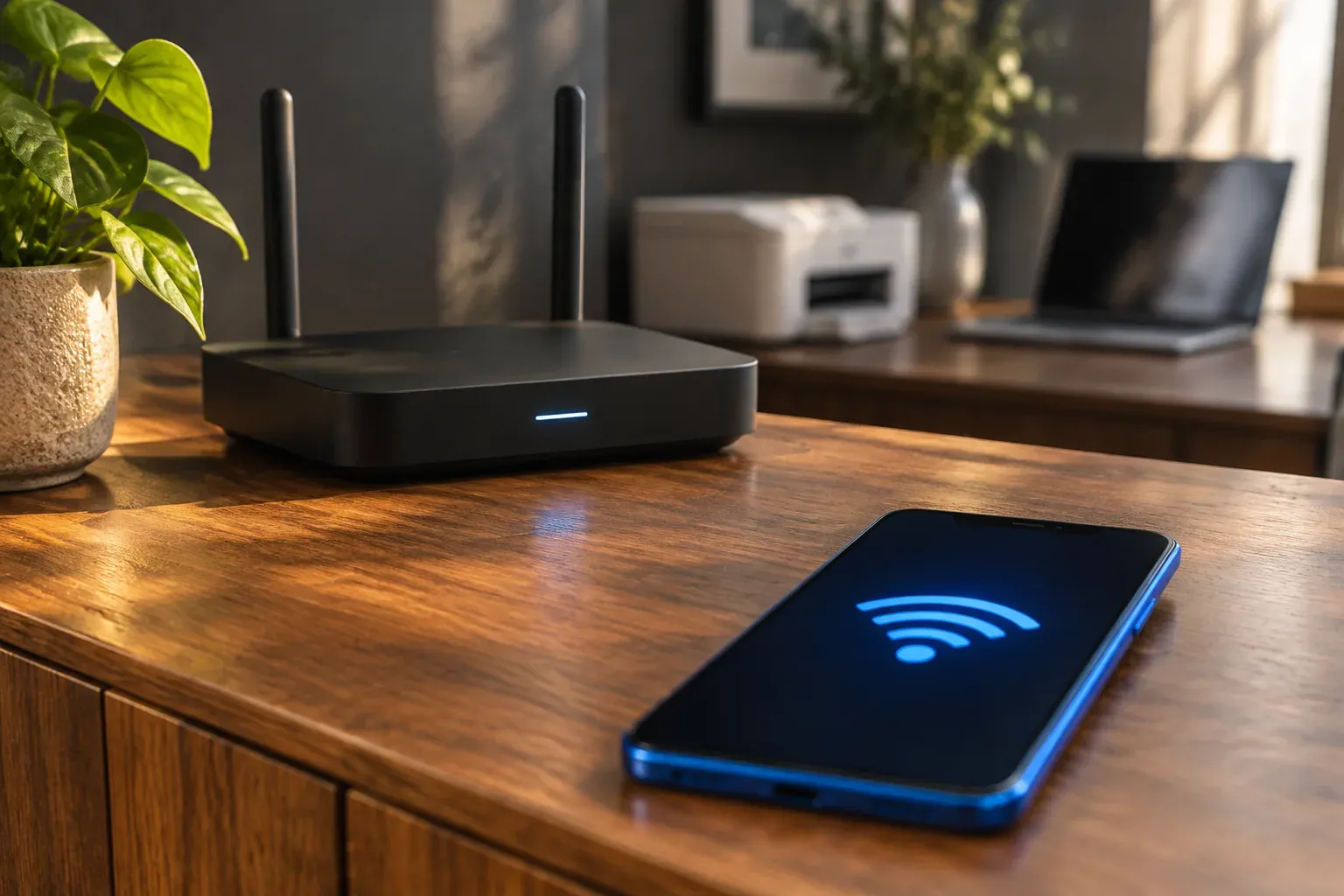
How to Set Up Guest WiFi and Keep Home Devices Private
Key takeaways
- Create a guest network with its own name and password so you can share internet access without handing out your main Wi-Fi credentials.
- Turn off guest access to the local network and check separately whether the router lets you block communication between guest devices.
- Test from a guest device with cellular data off, using a private service you already confirmed works on your main Wi-Fi.
- Change the guest password or disable the guest network when you want to withdraw access.
To set up guest wifi, open your router’s app or admin page, enable the guest network, and give it a separate name and password. Disable guest access to your local network, then connect a phone to guest Wi-Fi with cellular data off and check that it can load a website but cannot open a private service that works from your main Wi-Fi.
The router setting that matters most is what guests can reach after they connect. A separate network name makes it easy for visitors to pick the right Wi-Fi. The local access settings determine whether they can also reach shared devices such as printers, computers, or storage.
What does a guest Wi-Fi network do?
A guest network gives visitors a separate Wi-Fi name and password. With local network access blocked, they can browse, stream, and message over your internet connection while the router restricts access to devices on your main home network. You can change the guest password independently when you want to stop sharing it.
Think about what you expect visitors to do. A friend checking email needs internet access. A visitor who wants to cast to a living-room TV may need to discover and communicate with that TV locally. If you keep guests isolated from the main network, that kind of sharing may stop working. You can keep the restriction in place and start playback from a device already on your main Wi-Fi. Smart TV security guide
How to set up guest wifi on your home router
1. Open the controls for the system that provides your Wi-Fi. If you manage your network through a router or mesh app, start there. Otherwise, connect to your main Wi-Fi and use the router’s label or documentation to find its admin address. Sign in with the router administrator account. Some internet providers put wireless settings in their account app, and some homes use a separate mesh system for Wi-Fi. ASUS support
2. Find the guest network toggle. Look under Wi-Fi, Wireless, or Network settings for a label such as Guest Network, Guest Wi-Fi, or Guest Access. If you see options for different bands or access points, check which ones the guest setting covers. In a mesh system, the controls you need may live in the app that manages the system as a whole. TP-Link support
3. Set a network name, password, and security mode. Pick a recognizable name you can say out loud, such as Maple-Guest, and give it a strong, unique password. Choose WPA3-Personal if your router offers it and your visitors’ devices support it. If an older device cannot join, try WPA2/WPA3 transition mode if available, or WPA2-Personal with AES. Save the changes and check that the network appears in your phone’s Wi-Fi list. Wi-Fi Alliance
Keep the guest password separate from both your main Wi-Fi password and the router’s admin password. A printed QR code can make joining easier if your router or phone generates one. Replace the code whenever you change the guest credentials, and keep it somewhere you’re comfortable sharing it. Home Wi-Fi router security guide
How do you block guest access to private devices?
Open the guest network’s advanced settings and look for a control that allows access to the local network, intranet, or LAN. LAN means local area network and includes devices connected by Wi-Fi or Ethernet. Turn off any setting that grants guests access to it. If the setting is worded as a restriction, such as Block Local Access, turn it on. Check the help text when the label is ambiguous. NETGEAR support
| Setting to look for | What it controls | Setting for internet-only visitors |
|---|---|---|
| Allow guests to access the local network, LAN, or intranet | Whether guest devices can reach devices on your main network | Off |
| Allow guests to see or communicate with each other | Whether devices on the guest network can reach one another | Off unless visitors need local sharing |
The second setting is often called client isolation, AP isolation, or guest isolation. Read the description to see which devices it separates. Some routers offer a single option that covers several kinds of access, so check the behavior from a connected guest device. If your Wi-Fi system runs in access point or bridge mode, consult its documentation for that mode because available guest controls can differ from router mode.
How to test internet access and guest isolation
Pick a private device with an existing local web page, such as a printer with a web interface or a home storage appliance. From your main Wi-Fi, open its local address in a browser and confirm it responds. Use the same address for the guest check. This gives you a known working comparison, since an offline printer or an incorrect address can make a failed connection look like successful isolation.
- Join the guest network. Use a phone or laptop and check the connected network name in Wi-Fi settings. Turn off cellular data on a phone or unplug Ethernet on a laptop so the test uses guest Wi-Fi. If a VPN is active, disconnect it for the test if your device policy allows.
- Check the internet. Open a public website you haven’t just loaded, or reload a page and confirm fresh content appears. If the browser shows an error, resolve the internet connection before judging the isolation test.
- Check a private device. Open the same local address that worked on your main Wi-Fi. A timeout or other connection failure is consistent with isolation. If the printer’s page or storage login screen loads, the guest device can reach that service even if it still needs a password.
- Check guest-to-guest access if you blocked it. Connect a second guest device that already offers a local service you can test. Try that service from the first guest device. Use a service you know works between devices on an unrestricted network so the test has a useful baseline.
If a private page loads from guest Wi-Fi, review the local access setting, apply any changes, reconnect to the guest network, and repeat the test. A successful check covers the device and service you tried. For a broader check, repeat it with another private device, particularly if you have both wired and wireless equipment. In a mesh home, recheck from a room where your device connects through another node. Guide to lateral movement
Troubleshoot connection problems and reset guest access
The guest network doesn’t appear. Confirm the guest network is enabled and that the router saved the change. Check whether the router hides the network name or applies a schedule. If you’re using mesh Wi-Fi, test near the primary unit first and then move to where visitors usually connect. That can help distinguish a network-wide setting from a coverage issue.
The device sees the network but won’t join. Re-enter the password, paying attention to capitalization, or forget the network on the device and join again. If newer phones connect and an older device fails, check the guest network’s security mode. Try a supported compatibility mode and repeat the internet and isolation checks after changing it.
The device joins but has no internet. See whether a device on the main Wi-Fi can load the same public website. If both fail, start with the router’s internet connection. If only guest Wi-Fi fails, check for a guest schedule, a paused device, or an access limit in the router app. If the router offers a welcome or sign-in page, check whether the guest device needs to complete that step.
You want to withdraw access. Change the guest password and have authorized visitors reconnect with the new one. If you want to shut down guest access immediately, disable the guest network and verify that a previously connected device loses its connection. When you turn it back on, use the new credentials, update any printed QR code, and repeat the quick internet and isolation checks.
The Bottom Line
When you set up guest wifi, finish with two checks from a guest device on Wi-Fi alone. Load a public website, then try a private device address you verified on your main network. If the public site loads and the private connection fails, you’ve confirmed the two behaviors you wanted for that test. Share the guest credentials once both checks pass.
Frequently Asked Questions
Does guest Wi-Fi keep visitors off my home network?
It can if your router blocks guest access to the local network. Confirm the setting by trying to open a known working private device from a phone connected to guest Wi-Fi.
Should guest Wi-Fi have a different password from my main Wi-Fi?
Yes. A separate password lets you share access with visitors and change their credentials later without reconnecting the devices on your main Wi-Fi.
Can guests print or cast to a TV on my main Wi-Fi?
With local network access blocked, guests generally cannot discover or connect to a printer or TV on the main network. You can print or start casting from a device already connected to your main Wi-Fi.
Does guest Wi-Fi use the same internet connection?
On a typical home router, both networks use the same internet connection. Heavy streaming or downloading by guests can affect other users, and some routers let you set a guest bandwidth limit.
How can I tell if guest Wi-Fi isolation is working?
Turn off cellular data, join the guest network, and load a public website. Then try the local address of a printer or storage device you already confirmed works on your main Wi-Fi. The public site should load and the private connection should fail.
Read more on InnoVirtuoso
- 3-2-1 Backup Rule for Home and Small Offices
- Build a Home Lab: Your Safe Hacking, Coding, and Networking Playground at Home
- Why Corporate AI Budgets Are Set to Double in 2026—and How CEOs Can Turn Spend into ROI
- AI Models Now Orchestrate Multistage Network Attacks—Here’s How Defenders Keep Pace
- Moltbook: The First Social Network Built for AI Agents—and Why It Matters for Business, Research, and Society
Enjoyed this? Subscribe to the InnoVirtuoso newsletter for practical AI, security and tech insights — and share your thoughts in the comments.